How to Search
Index & Document Search Guide 1980–1996 · Deed Indexes ONLY 1800–1979. Step-by-step instructions for searching the Grantor and Grantee index books in AVA — the Fairfield County Recorder's online land-records system.
To search for the index books and documents back to 1980 in AVA
Use the steps below to locate Grantor and Grantee index pages in AVA and open the scanned book pages. Tip: click any screenshot to open the full-size image in a new tab.
Basic search steps
- Type “INDEX” in the Document Types field in AVA.
- Enter the first letter of the particular name you are searching for in the “Last Name…” field.
- Click the SEARCH button. The results display all of the Grantor or Grantee Index pages that include party names beginning with the letter entered.
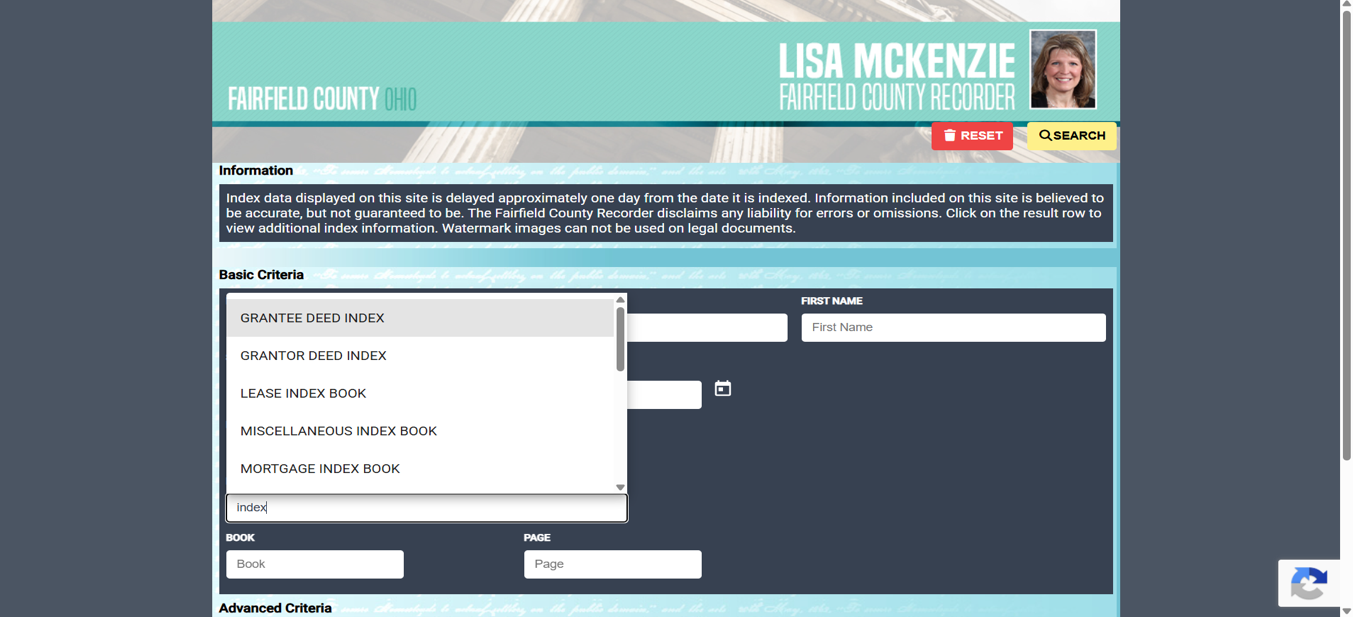
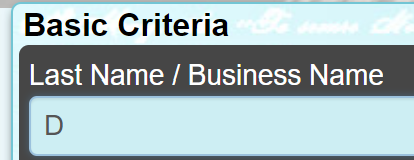
How the search results are sorted (important)
- The Search Results display in date range / alphabetical order descending (most recent records at the top).
- NOTE: the value in the “Recorded Date” column is simply a placeholder date required by AVA — it does not represent an actual recording date.
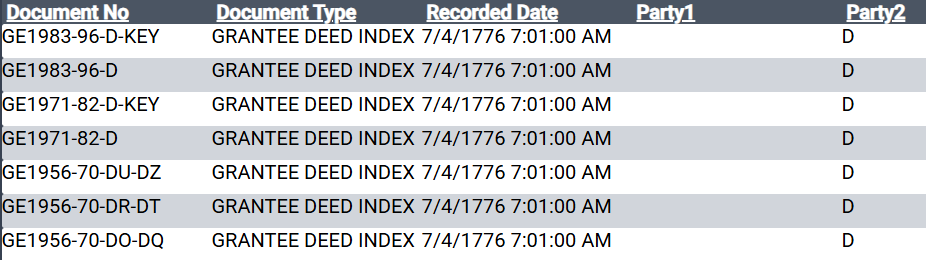
Understanding the search results
The records in the Search Results are identified as follows:
- The value in the “Document No” column identifies:
- GR refers to the Grantor pages; GE refers to the Grantee pages.
- The date range of each index book (e.g., 1900–1955) and the alphabetical range of the party names (e.g., “DO–DZ”).
- “Key” identifies the Key pages of each book.
- The number at the end of a record (e.g., “61”, “59”) refers to the page of the index book referenced in the Key pages.
- The value in the “Doc Type” column identifies the type of index book.
Open and navigate an index book image
To view any record in the search results, click anywhere on the row of the desired record, then click the image icon in the upper-left of the row.
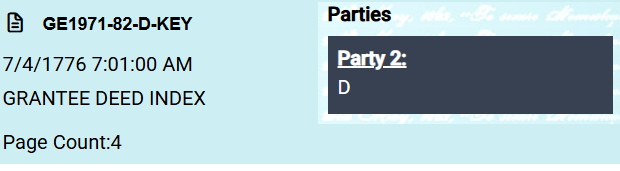
The image of the selected pages of the index book will display. An example of the “D” pages of a Grantee Index Book is shown below.
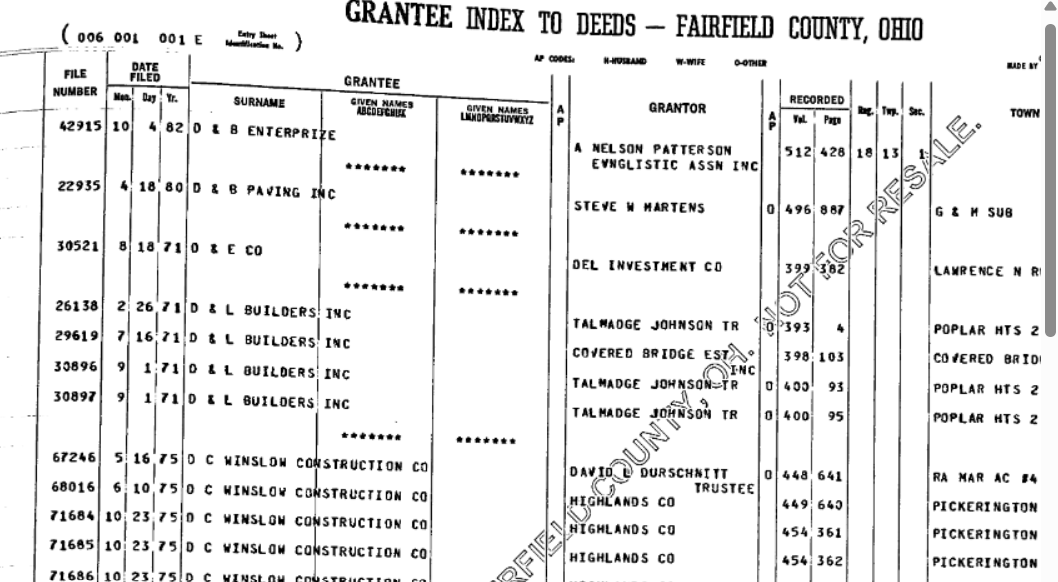
Use the tool bar below the image to scroll through the pages:

 Click the Magnifying Glass button to zoom in or out of the image.
 Click the Double Arrow button to scroll through the images one page at a time.
Locate a particular name using key pages
1800–1970 deed index books (cutout names + mixed name groups)
- Click the image icon of the desired Key page to view the image. A portion of the “GR1801-99-DA-DN-KEY” page is shown below.
- Click the Double Arrow button below the image to scroll through the pages.
- Note the page number of the name you are searching, then click
Backat the top of the screen to return to the search results. - In the Search Results, locate the row that contains the letter range (e.g., “DA–DN”) and, for “Cutout” names, the page number (e.g., “31”) listed on the Key page.
- Click the image icon in that row to display the desired page(s).
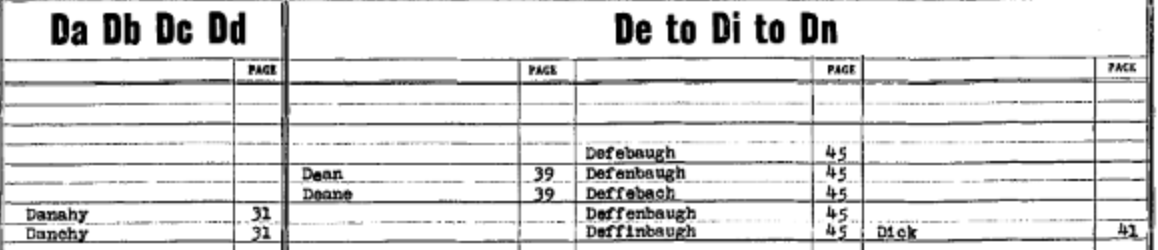
Cutout Names vs. Mixed Name Groups (what to look for)
- Cutout Names (top portion of each Key page): the “Document No” contains the letter range and the page number listed on the Key page.
- Mixed Name Groups (bottom portion of each Key page): the “Document No” contains only the letter range — the page number is not listed, but the correct page opens when you view the image.

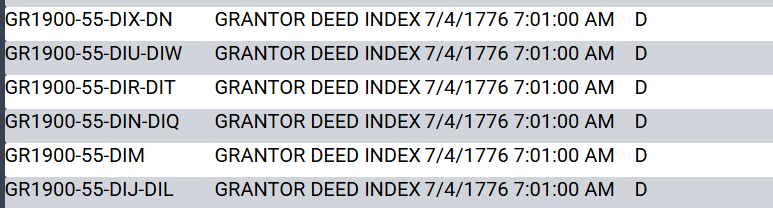
1971–1996 all index books (cutout names only)
- Click the image icon of the desired Key page to view the image.
- Note the page number of the name you are searching, then click
Backto close the image. - In the Search Results, locate the row that contains the letter range (e.g., “B–BN”) listed on the Key page.
- Click the image icon in that row to display the index pages for the selected letter range.
- To scroll to the page number noted on the Key page, click the Double Arrow button, or enter the page number in the “GO TO PAGE” field and click Go.
Searching for 1980–1996 documents
- Once the Volume and Page have been found for the document, use the
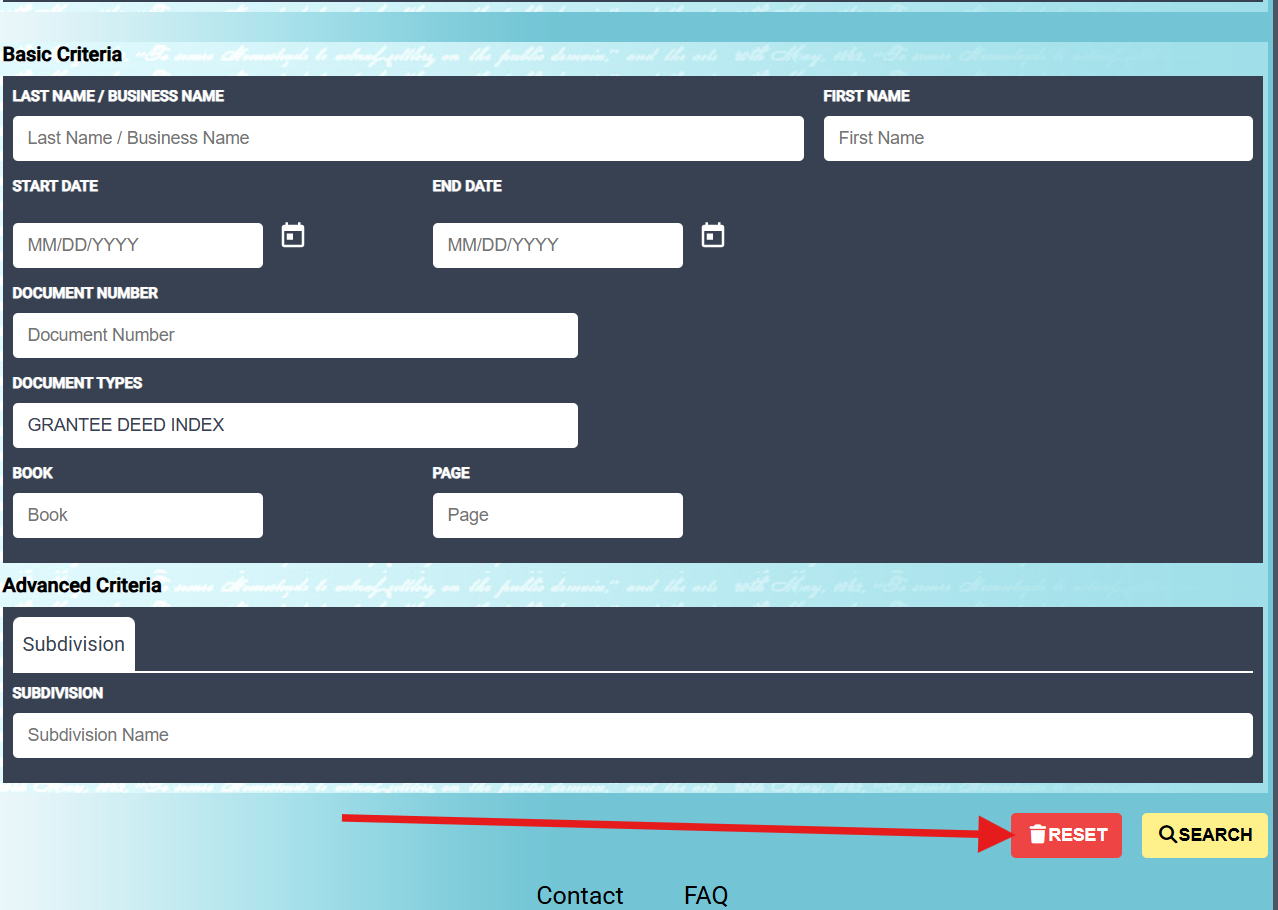
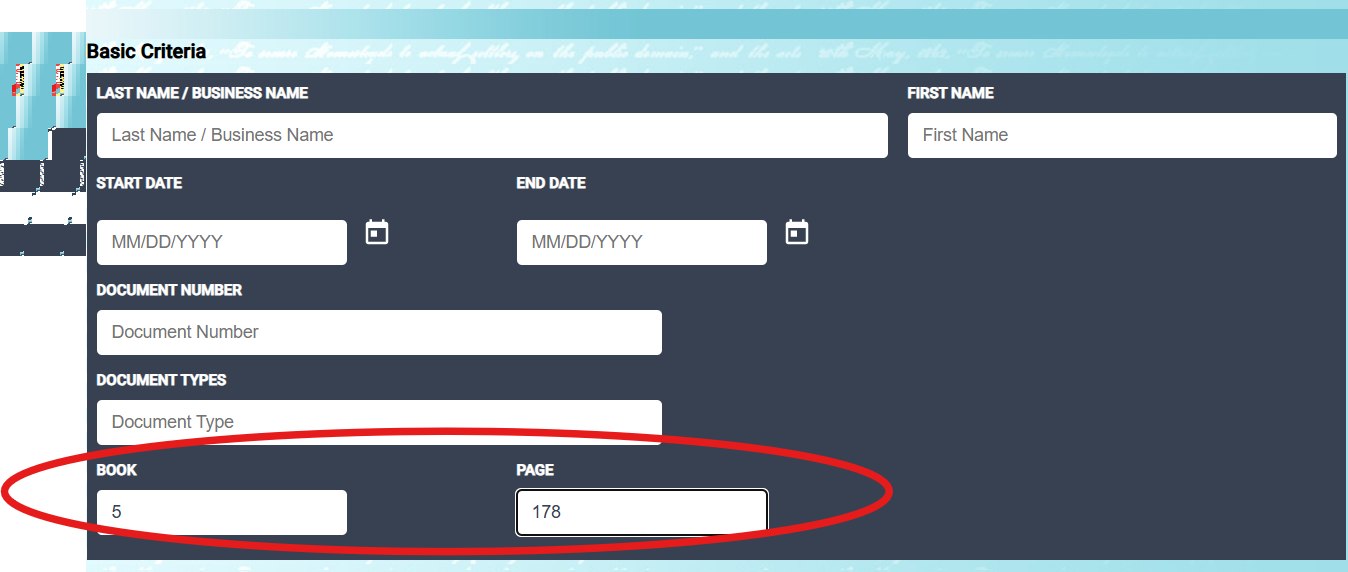
Backbutton to return to the search screen and click Reset. - Once reset, enter the Volume in the “Book” field and the Page in the “Page” field. Click Search and the document will appear in the results.
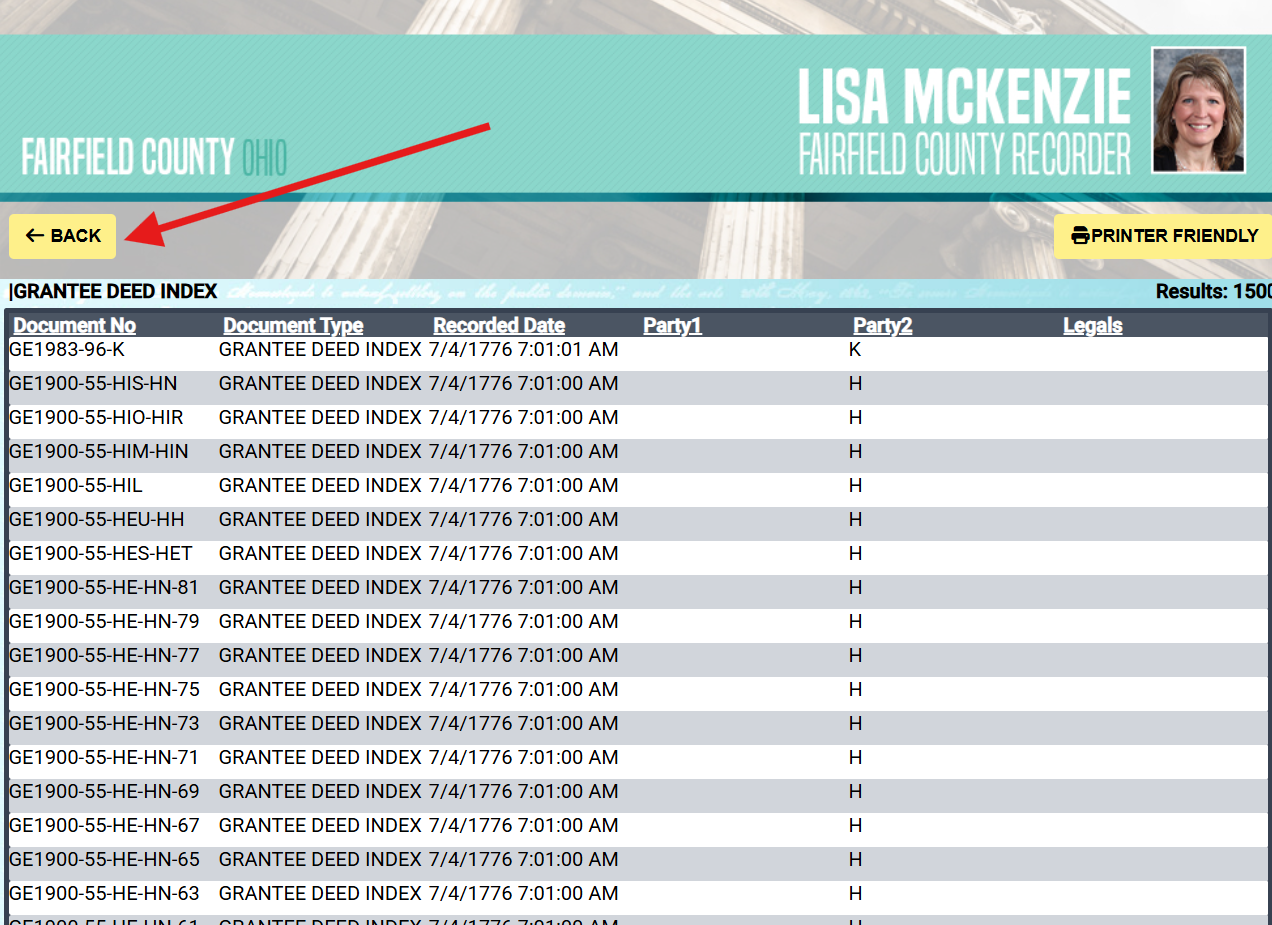
The Recorder's Office will do its best to assist; however, staff will not perform searches or aid in the preparation of a document.